- Explicit Phrase:
Lets say you are looking for content about internet marketing. Instead of just typing internet marketing into the Google search box, you will likely be better off searching explicitly for the phrase. To do this, simply enclose the search phrase within double quotes.Example: "internet marketing"
- Exclude Words:
Lets say you want to search for content about internet marketing, but you want to exclude any results that contain the term advertising. To do this, simply use the "-" sign in front of the word you want to exclude.Example Search: internet marketing -advertising
- Site Specific Search:
Often, you want to search a specific website for content that matches a certain phrase. Even if the site doesn’t support a built-in search feature, you can use Google to search the site for your term. Simply use the "site:somesite.com" modifier.Example: "internet marketing" site:www.smallbusinesshub.com
- Similar Words and Synonyms:
Let’s say you are want to include a word in your search, but want to include results that contain similar words or synonyms. To do this, use the "~" in front of the word.Example: "internet marketing" ~professional
- Specific Document Types:
If you’re looking to find results that are of a specific type, you can use the modifier "filetype:". For example, you might want to find only PowerPoint presentations related to internet marketing.Example: "internet marketing" filetype:ppt
- This OR That:
By default, when you do a search, Google will include all the terms specified in the search. If you are looking for any one of one or more terms to match, then you can use the OR operator. (Note: The OR has to be capitalized).Example: internet marketing OR advertising
- Phone Listing:
Let’s say someone calls you on your mobile number and you don’t know how it is. If all you have is a phone number, you can look it up on Google using the phonebook feature.Example: phone book:617-555-1212 (note: the provided number does not work – you’ll have to use a real number to get any results).
- Area Code Look up:
If all you need to do is to look-up the area code for a phone number, just enter the 3-digit area code and Google will tell you where it’s from.Example: 617
- Numeric Ranges:
This is a rarely used, but highly useful tip. Let’s say you want to find results that contain any of a range of numbers. You can do this by using the X..Y modifier (in case this is hard to read, what’s between the X and Y are two periods. This type of search is useful for years (as shown below), prices or anywhere where you want to provide a series of numbers.Example: president 1940..1950
- Stock (Ticker Symbol):
Just enter a valid ticker symbol as your search term and Google will give you the current financials and a quick thumb-nail chart for the stock.Example: GOOG
- Calculator:
The next time you need to do a quick calculation, instead of bringing up the Calculator applet, you can just type your expression in to Google.Example: 48512 * 1.02
- Word Definitions:
If you need to quickly look up the definition of a word or phrase, simply use the "define:" command.Example: define:plethora
Most Useful Google Search Tips
Steps To Install Linux OS Besides Your Windows 7
You might be looking for a way to try out Ubuntu Linux but don’t like
the idea of creating a partition, using a slow live CD, or don’t have
enough resources to run a virtual machine. Today we take a look at using
the Wubi installer to get Ubuntu running on your computer with very
little effort.
Wubi is an officially supported Ubuntu installer that allows Windows
users to easily get started in the Linux realm. Using Wubi to install
Ubuntu is a similar process you’d use to install any other software
program in Windows. It saves you the hassle of creating another
partition or creating a VM. Wubi has been around for a few years now,
and official version have been included on the Ubuntu Live CD since 8.04
“Hardy Heron”. We’ll take a look at installing Wubi from the Ubuntu
Live CD and also downloading Wubi.exe separately and installing
Ubuntu.
Installing Ubuntu with Wubi from Ubuntu CD
In this first method we’ve already downloaded the Ubuntu Live ISO and
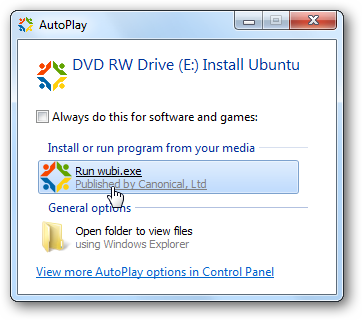
burned it to CD. In Windows pop in the Ubuntu 9.10 installation disc
and run wubi.exe.

At the Ubuntu Menu screen click the Install inside Windows button.
At the Ubuntu Installer screen you choose the language, install drive,
installation size, username and password then when you’re finished click
Install.
Give it a few moments while the installation kicks off…
When it’s complete, a restart is required but you can do it right away or wait until later.
Installing Ubuntu from Wubi.exe
If you don’t already have the Ubuntu CD, another option is to
download the Wubi Installer and kick off the install process. This
simplifies the process even more because you don’t need to download the
ISO and burn it to disc. One thing to point out with this method is
you’ll get extra choices for the type of Desktop Environment you wish to
install. In this example we’re choosing the Kubuntu environment.
Now when the installation takes place, it will download the appropriate
ISO for the chosen desktop environment. Kubuntu uses the KDE environment
which is different from the Gnome used in Ubuntu. The main difference
is that KDE is more flashy with graphics and might be easier for a
Windows user to get comfortable with.
No matter which route you take to install Ubuntu with Wubi, everything is installed to C:\Ubuntu directory.
Booting Into Ubuntu
After the first reboot, you can choose between Windows 7 or Ubuntu at the Windows Boot Manager screen.
The first time you boot into Ubuntu, wait a few minutes while the
installation finishes up. You’ll see a series of screens and then the
main install screen is displayed showing progress and screens showing
features offered in Ubuntu 9.10.
Your system will reboot one more time and again you will have Windows 7 or Ubuntu to choose from.
When you select Ubuntu from the bootloader, it will go into the GRUB
bootloader where you can select Ubuntu, Recovery Mode, or back to the
Windows 7 Boot Manager.
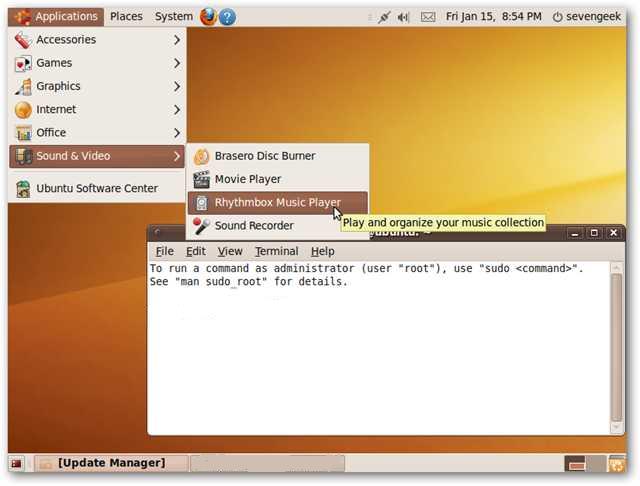
At the Ubuntu login screen you’ll notice the username and password will be what you gave it in the steps above.
That’s really all there is to it…now you can easily boot into Ubuntu and get your geek on with this popular flavor of Linux.
Here is a look at the Kubuntu interface after a bit of tweaking…if you choose that route.
After Ubuntu has been completely installed, you can select the default
boot system by going into Advance System Settings \ Startup and
Recovery…then selecting between Windows or Ubuntu.
Uninstall Ubuntu
So you’ve tried Ubuntu and decided you don’t like it, so now what do
you do? It’s easy…just uninstall it. Boot into Windows 7 and go into Add
/ Remove Programs…
The uninstall process is extremely simple as well and consists of two screens. Verify you want to uninstall Ubuntu…
That’s it! It’s uninstalled and you have your hard drive space back.
When you reboot your system, there’s no leftover funky GRUB or other
bootloader to worry about. Your PC will boot directly into Windows.
This might be the easiest way for the Linux beginner to get their feet
wet with Ubuntu as there are no partitions to create and installation is
extremely simple.If you’re looking for an extremely easy way to start using Ubuntu Linux, you’ll definitely want to give the Wubi install a try.
How to Become a Hacker
Most of us are very curious to learn Hacking and want to become a Hacker, but don’t know where to start. If you are in a similar situation, then this article will most likely guide you
to reach your goal.
On a regular basis, I get a lot of emails where people ask me ”How to Become a Hacker”. In fact, this question is not an easy one to answer, since hacking is not an art that can be mastered overnight. It requires knowledge, skills, creativity, dedication and of course the TIME. Everyone can become a hacker provided they learn it from the basics. So, if you wanna become a hacker, then all you need is a good source of knowledge that will guide you through various concepts of hacking from the basics.
What Skills do I Need to Become a Hacker?
In simple words, there is no magic to become a Hacker. But like anything else that is worthwhile, it takes dedication and willingness to learn. It is most important to have a basic knowledge of topics such as operating system basics and it’s working, computer networks, computer security and of course programming. However, you need not be the expert in each or any of those topics mentioned. As you gain the basic knowledge of various branches of computer, you can choose any one as your favorite and advance in it.
What is the Best Way to Become a Hacker?
As said earlier, the best way to become a hacker is to start from the basics. You will have to master the basics to build a strong foundation. And once this is done, you’ll be in a position to explore new ideas and start thinking like a Hacker. There exists tons of books on the market that will teach you hacking, but unfortunately, it requires a set of pre-established skills and knowledge to understand the concepts explained in the book.
Also, most of them are not suitable for the beginners who doesn’t know anything about hacking..
So i will Good ideas and knowledges on hacking,by introducing very effective hacking tutorials from the beginning on my upcoming posts.. So stay connected..
"There is No Security In The World, Only Opportunity..,It is just the beginning of your journey. To become a hacker, all you need is dedication and hard work. I wish you all the best for your future success."
Create Your Own Windows 7 Logon Screen
Do you like to customize the Windows interface, and tired of the
standard log on screen in Windows 7? Today we take a look at Windows 7
Logon Background Changer which is a free and Open Source app that lets
you easily customize the logon screen.
Windows 7 Logon Background Changer
This cool app is free, Open Source, and lets you change the wallpaper
on the Windows 7 Logon screen. It doesn’t require installation, and
won’t change any of the system files. The download is a small zip file
that contains an executable you can run from a flash drive, and also an
installer in the Setup folder if you choose to install it.
After
launching Background changer, you can browse through the standard
Windows backgrounds to get an idea of how it will look.
If you don’t want to use the standard Windows backgrounds, you can add your own folder of images.
After you’ve selected the background you want, click on the Apply button in the upper right hand corner.
Click Yes on the authorization screen.
Click Yes to User Account Control if it comes up.
The wait a bit while the background is applied.
Now you can log off to see how the new background will look when you or another user signs in.
There are some different settings you can select like resetting back to
the default pictures folder, preventing other users from changing the
background, and adjust shadows.
Conclusion
There are several apps out there that will tweak the logon
background, but this one from Julien Manici is one of the better ones
that I’ve found. It’s easy to use and has a nice amount of features for
tweaking the background. If you like to tweak and customize your Windows
7 interface, you’ll definitely want to take a look at this app.
Reset Your Password With An Install CD
Forgetting your password is never any fun, but luckily there’s a
really easy way to reset the password. All you need is a copy of the
Windows installation disk and one simple command line trick.
Resetting Your Forgotten Windows Password
Boot off the Windows disk and select the “Repair your computer” option from the lower left-hand corner.
Follow through until you get to the option to open the Command Prompt, which you’ll want to select.
First you’ll want to type in the following command to backup the original sticky keys file:
copy c:\windows\system32\sethc.exe c:\
Then you’ll copy the command prompt executable (cmd.exe) over top of the sticky keys executable:
copy c:\windows\system32\cmd.exe c:\windows\system32\sethc.exe
Now you can reboot the PC....
Resetting the Password
Once you get to the login screen, hit the Shift key 5 times, and you’ll see an administrator mode command prompt.
Now to reset the password—just type the following command, replacing the username and password with the combination you want:
net user geek MyNewPassword
That’s all there is to it. Now you can login.
Of course, you’ll probably want to put the original sethc.exe file
back, which you can do by rebooting into the installation CD, opening
the command prompt, and copying the c:\sethc.exe file back to
c:\windows\system32\sethc.exe.
Subscribe to:
Posts (Atom)
Comments
Enter Your Comments Here...